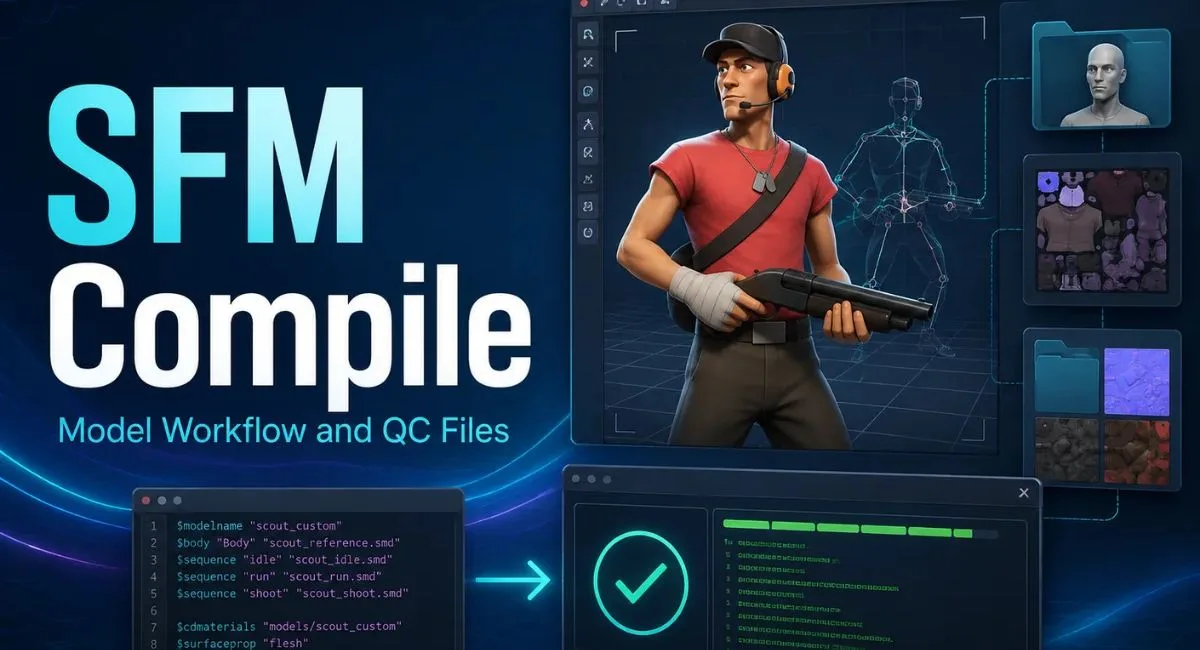
If you are working with Source Filmmaker and want to use a custom character, prop, weapon, animation, or other 3D asset, you will eventually encounter the term SFM compile. Compilation is one of the most important parts of the Source Filmmaker workflow because SFM cannot simply open a Blender, Maya, FBX, or OBJ project and treat it as a finished Source model.
Instead, the asset has to be prepared in a format that the Source engine understands. For a typical custom model, this means exporting the required geometry and animation data, creating a QC file that tells the compiler what to do, and then using StudioMDL, often through Crowbar, to generate the files SFM can load.
This guide explains SFM compile from beginning to end. It covers what compilation means, which files are involved, how QC files work, how to compile a model with Crowbar, how to organize textures and materials, how animations are compiled, how to test the finished model, and how to troubleshoot the errors that commonly stop a model from working.
Whether you are completely new to Source Filmmaker or already creating custom assets, understanding the compilation pipeline can save hours of trial and error.
What Is SFM Compile?
SFM compile is the process of converting Source-compatible model data and compiler instructions into files that Source Filmmaker can recognize and use.
A 3D model created in Blender, Maya, or another modeling application is not automatically an SFM model. The modeling application stores information in its own project format, while Source Filmmaker relies on Source engine model formats.
For a typical custom model, the workflow looks like this:
3D software → SMD/DMX → QC file → StudioMDL/Crowbar → MDL and supporting files → Source Filmmaker
The QC file acts as the instruction sheet. It tells the compiler where the model data is located, what the output model should be called, where materials are located, which animations should be included, and whether additional features such as collision data or flexes are required.
The compiler then processes those instructions and creates the binary files required by SFM.
This is why simply placing an FBX or OBJ file inside the SFM folder does not normally make it available as a usable model. The Source engine expects its own compiled asset structure.
Why Is SFM Compilation Necessary?
Compilation exists because Source Filmmaker uses the Source engine’s asset system rather than the native project formats of modern 3D applications.
Consider a model created in Blender. The .blend file contains much more than the final mesh. It can include modifiers, materials, objects, armatures, scene settings, animation data, cameras, lights, and other Blender-specific information. Source Filmmaker does not understand that project structure.
The model therefore needs to be exported into an intermediate format such as SMD or DMX.
The compiler then uses that information together with a QC script to create the Source model.
Compilation provides several important functions:
- Converts source model data into Source-compatible binary files
- Defines the model’s output location
- Connects geometry to the appropriate materials
- Defines bones and animation sequences
- Allows custom props and characters to work inside SFM
- Creates supporting model data required by the engine
- Provides a controlled way to configure how the asset behaves
For creators, the most important point is simple: SFM compilation is the bridge between a prepared 3D asset and a model that Source Filmmaker can actually load.
SFM Compile File Formats Explained
Understanding the file types makes the entire process much easier.
SMD
SMD is a common intermediate format used in the Source model pipeline.
Depending on how it is exported, an SMD can contain model geometry, skeleton information, or animation data. A character may therefore have multiple SMD files, with one used for the reference mesh and others used for individual animations.
For example:
character-ref.smd
idle.smd
walk.smd
run.smd
The QC file determines how those files are used.
DMX
DMX is another format used in Source workflows. It can store more complex combinations of model, skeleton, animation, and other asset information.
Whether you use SMD or DMX depends on your modeling and export workflow.
QC
The .qc file is arguably the most important file in the compilation process.
It is a plain-text script containing instructions for the Source model compiler.
A QC file can specify:
- Model output name
- Model geometry
- Materials directory
- Animation sequences
- Bone-related settings
- Bodygroups
- Flexes
- Collision information
- Other model compilation options
The compiler reads this file and follows its instructions.
MDL
The .mdl file is the primary compiled model file that Source Filmmaker uses.
It contains important information about the finished model and connects the model with its supporting files.
If your compile fails to generate an MDL, something in the compilation process generally needs to be investigated.
VVD
The .vvd file contains vertex data associated with the compiled model.
It works together with the MDL and VTX files rather than functioning as a standalone replacement for the model.
VTX
VTX files contain optimized rendering information used by the Source engine.
Depending on the compile and engine configuration, you may see VTX files with different suffixes.
The important thing is that the required compiled model files need to remain together and in the correct directory structure.
PHY
A PHY file contains physics or collision information when collision data has been defined for the model.
Not every SFM asset requires a PHY file. A simple visual prop may not need the same collision setup as a model intended for physics-related use.
What Tools Do You Need for SFM Compile?
You do not need an enormous software stack to compile models for Source Filmmaker.
A practical setup can include:
Source Filmmaker
Source Filmmaker provides the environment in which the finished asset will ultimately be used.
It also includes Source engine tools required by the SFM workflow, including the model compiler used by the pipeline.
Blender
Blender is a popular choice for creating and preparing custom models.
It can be used for:
- Modeling
- UV mapping
- Rigging
- Weight painting
- Animation
- Material preparation
- Exporting Source-compatible model data
Other 3D applications can also be used if they support an appropriate Source export workflow.
Blender Source Tools
A Source export add-on can make it easier to export SMD and DMX data from Blender.
The important thing is not the modeling program itself. What matters is that the final exported files are correctly structured for the Source compilation pipeline.
Crowbar
Crowbar provides a graphical interface for several Source engine modding tasks, including model compilation.
For beginners, Crowbar is often easier than manually working with command-line compiler commands.
It allows you to select a QC file, choose the relevant game configuration, start the compilation, and inspect the compiler output.
VTF and VMT Tools
Models and textures use separate systems.
Texture images generally need to be converted into Source-compatible texture files, while VMT files define how those textures are used by the material system.
If your model compiles successfully but appears with missing or incorrect textures, the problem may be in the material pipeline rather than the model compilation itself.
Text Editor
A simple text editor is enough to create and edit QC files.
A code-friendly editor can make the process easier because QC files contain structured commands and paths.
How to Prepare a Model Before SFM Compile
Compilation cannot repair every problem in a poorly prepared model.
Before starting the compile, inspect the asset carefully.
Check the following:
- The mesh has sensible geometry
- The model has appropriate UVs
- Materials are assigned correctly
- Texture names and paths are consistent
- Bones are correctly positioned if the model is rigged
- Vertex weights are valid
- Animation files use the expected skeleton
- The exported SMD or DMX files actually exist
- File names contain no unexpected spelling differences
- The model is exported using a compatible Source workflow
This preparation step is important because many apparent compile errors are actually caused by missing files, incorrect paths, invalid exports, or incorrectly structured assets.
Create the Correct Folder Structure
A clean folder structure can prevent many SFM compile problems.
A simple custom model might be organized like this:
usermod/
├── models/
│ └── custom/
│ ├── hero.qc
│ ├── hero.smd
│ ├── idle.smd
│ └── hero.mdl
│
└── materials/
└── models/
└── custom/
├── hero.vmt
└── hero.vtf
The exact arrangement can vary depending on your project, but the principle is consistent: the paths referenced by your QC file must correspond to the actual locations of your assets.
A common beginner mistake is changing a folder name after writing the QC file.
For example, if the QC references:
models/custom/
but the material files are actually stored under:
materials/models/characters/
the model may compile while the materials fail to load.
How to Create a Basic QC File
The QC file tells StudioMDL how to build the model.
A simple static model may use a structure similar to this:
$modelname “custom/hero.mdl”
$body “body” “hero.smd”
$cdmaterials “models/custom”
$sequence “idle” “hero.smd” fps 1
This example is intentionally simple.
The commands mean:
- $modelname defines the output model path and name
- $body identifies the model geometry
- $cdmaterials tells the compiler where the model’s material files are located
- $sequence defines an animation sequence
Your actual QC file may require additional commands depending on whether the asset is a character, prop, animated object, flex model, or more complex asset.
Understanding the Most Important QC Commands
$modelname
This defines the location and filename of the compiled MDL.
For example:
$modelname “custom/hero.mdl”
The path needs to match the location where you want the finished model to appear.
$body
The $body command connects the model to its mesh data.
For example:
$body “body” “hero.smd”
If the SMD file does not exist where the compiler expects it, compilation can fail.
$cdmaterials
This command identifies the material directory used by the model.
For example:
$cdmaterials “models/custom”
The path must correspond to the material location expected by the Source material system.
$sequence
A model generally needs an animation sequence, even when the asset is essentially static.
For a simple asset, the same reference SMD can sometimes be used as a basic sequence depending on the model setup.
For an animated character, however, separate animation files are normally referenced.
Example:
$sequence “idle” “idle.smd” fps 30 loop
$collisionmodel
This command can define collision geometry when collision data is required.
For example:
$collisionmodel “hero-physics.smd”
{
$concave
}
Whether collision data is necessary depends on how the asset will be used.
How to Compile an SFM Model With Crowbar
Once your exported model files and QC file are ready, compilation is straightforward.
Step 1: Open Crowbar
Launch Crowbar and locate its model compilation section.
Make sure it is configured for the Source Filmmaker environment.
Step 2: Select the QC File
Browse to the .qc file you prepared.
The QC file is what tells StudioMDL how to process the model.
Step 3: Check the Game Configuration
Make sure Crowbar is using the correct Source Filmmaker configuration.
Incorrect game configuration or compiler paths can cause confusing errors.
Step 4: Check Your Paths
Review:
- QC file path
- Game path
- Compiler path
- Output path
- SMD or DMX locations
- Material paths
A large percentage of beginner compilation problems are simply path problems.
Step 5: Start the Compile
Start the compilation process.
Crowbar passes the relevant information to the Source model compiler.
The compiler reads the QC file, loads the referenced source assets, processes them, and attempts to generate the finished model files.
Step 6: Read the Compile Log
Do not immediately close the log after clicking Compile.
Look for:
- Errors
- Warnings
- Missing files
- Invalid paths
- Missing materials
- Skeleton problems
- Model loading failures
A successful compile should produce the expected model files.
How to Compile SFM Models With StudioMDL Directly
Crowbar is convenient, but it is useful to understand that it is essentially providing a more accessible interface around Source engine tools.
StudioMDL can also be invoked directly from a command line using a QC file.
The general concept is:
studiomdl.exe path\to\model.qc
The exact command and environment depend on your installation and configuration.
Direct compilation can be useful for advanced users, automated workflows, batch processing, or troubleshooting.
For beginners, however, Crowbar generally provides a simpler starting point because it exposes the important configuration options through a graphical interface.
How to Compile SFM Animations
Compiling a character is different from compiling a simple static prop because animation data must also be defined.
A character might have:
character-ref.smd
idle.smd
walk.smd
run.smd
jump.smd
The reference file provides the model and skeleton information, while additional SMD files can contain individual animation sequences.
The QC file then connects those animations to names that SFM can use.
For example:
$sequence “idle” “idle.smd” fps 30 loop
$sequence “walk” “walk.smd” fps 30 loop
$sequence “run” “run.smd” fps 30 loop
The animation names become part of the model’s available sequence data.
Animation compilation requires extra attention to the skeleton. If the animation’s bones do not match the model’s expected skeleton, the result can be broken movement, incorrect poses, or compiler errors.
How Textures Work With SFM Compile
One of the most confusing things for new SFM users is the difference between model compilation and texture preparation.
Compiling the model does not mean that ordinary PNG or JPG images automatically become usable Source materials.
A typical Source material setup uses:
Texture image
↓
VTF texture
↓
VMT material
↓
Model material reference
A basic VMT might look like:
“VertexLitGeneric”
{
“$basetexture” “models/custom/hero”
}
The $basetexture path should correspond to the texture location without unnecessarily adding the file extension.
If the model loads but appears pink and black, investigate the material and texture paths before assuming the model compilation itself failed.
Why Your SFM Model Appears Pink and Black
The familiar purple or pink checkerboard usually indicates that SFM cannot find or correctly use a required material or texture.
Check:
- Is the VMT file present?
- Is the VTF file present?
- Does the VMT point to the correct VTF?
- Is the material path consistent with $cdmaterials?
- Are folder names spelled correctly?
- Did you accidentally use an incorrect capitalization or directory?
- Is the texture in the correct materials directory?
A model can compile perfectly and still display missing textures.
That distinction is important because recompiling the model repeatedly will not fix a VMT or VTF path problem.
Common SFM Compile Errors and Their Fixes
Could Not Load SMD File
This usually means the compiler cannot find the SMD file specified by the QC file.
Check the filename carefully.
For example, if your QC says:
$body “body” “character.smd”
the compiler needs to find the corresponding file in the expected location.
Check spelling, capitalization, folder location, and extension.
Missing Reference Mesh
A missing reference SMD is another common problem.
Make sure the reference file exists and that the QC command points to its exact filename.
Do not assume that the compiler will automatically locate a similarly named file.
Model Compiles but Does Not Appear
If an MDL is generated but SFM does not show the model correctly, investigate:
- Model directory
- $modelname
- SFM search paths
- File permissions
- Model naming
- Supporting VVD and VTX files
- Material paths
Also restart or refresh the relevant SFM asset view when necessary.
Model Appears Without Textures
This normally points toward the material pipeline.
Check the VMT, VTF, $cdmaterials, and texture directory.
Character Is Stuck in a T-Pose
A T-pose can indicate an animation or skeleton problem.
Check whether:
- The model has an appropriate sequence
- Animation SMD files use the correct skeleton
- Bone names match
- Bone hierarchy is consistent
- The QC file references the correct animation files
Bones Move Incorrectly
Incorrect weights, mismatched skeletons, or export settings can cause distorted animation.
Fix the model or animation in the original 3D application and export it again rather than expecting the compiler to repair bad skeletal data.
Compiler Stops With an Error
Always read the first meaningful error in the log.
Later errors are often consequences of the original problem.
For example, if the compiler cannot load an SMD file, subsequent messages may simply indicate that the model compilation was aborted.
Fix the earliest actual error first.
SFM Compile vs Model Import
It is helpful to understand that compilation and importing are not the same thing.
Importing means making an already compatible asset available to SFM.
Compiling means creating that compatible Source asset from source model data and compiler instructions.
A common workflow is:
Blender
↓
Export SMD/DMX
↓
Create QC
↓
Compile
↓
Generate MDL/VVD/VTX
↓
Install in SFM
↓
Test
Once a model has been successfully compiled, you can reuse the compiled asset without repeating the entire process every time you open a project.
How to Test a Compiled Model
Do not assume the compile is perfect simply because an MDL was generated.
Open Source Filmmaker and test the model.
Check:
- Does it appear in the model browser?
- Are textures visible?
- Are materials correct?
- Are bones present?
- Can the model be posed?
- Do animations work?
- Are flexes working if included?
- Does the model scale correctly?
- Are there strange deformations?
- Are any parts invisible?
- Does the viewport remain stable?
A model that technically compiles can still have functional problems.
Testing inside SFM is therefore an essential final step.
Best Practices for a Reliable SFM Compile Workflow
A consistent workflow makes compilation much easier.
Keep File Names Simple
Avoid unnecessarily complicated filenames.
Use names that clearly describe the asset, such as:
hero.smd
hero.qc
hero_idle.smd
hero_run.smd
hero.vmt
hero.vtf
Keep Source Files Organized
Store the QC, SMD, DMX, and animation files in a predictable project structure.
This makes troubleshooting much easier.
Verify Every Path
Do not rely on memory.
If a path is referenced in the QC, compare it with the actual folder structure.
Read Warnings
Warnings are not always harmless.
A model may compile while still containing problems that become visible later when you animate or render it.
Test Small Changes
If you are debugging a complex model, avoid changing ten things at once.
Change one part, compile again, and compare the result.
This makes it much easier to identify the actual cause of a problem.
Keep a Backup of Working QC Files
Once a QC file successfully produces a working model, keep a backup.
A working base configuration can save significant time when creating future assets.
SFM Compile for Static Props
Static props are generally simpler than animated characters.
A basic static prop may only need:
- Mesh
- Material
- QC
- Basic sequence
- Optional collision data
If the object does not need bones or animation, there is less skeletal information to manage.
However, do not automatically treat every prop as a static prop. If you intend to manipulate or animate parts of the object in SFM, its model setup may need to be structured differently.
SFM Compile for Characters
Characters require more preparation.
A typical character pipeline includes:
- High-quality mesh
- UV mapping
- Materials
- Skeleton
- Vertex weights
- Reference mesh
- Animation sequences
- Optional facial flexes
- QC configuration
The most important difference is that character compilation is not only about getting the mesh into SFM. The model must also contain a usable skeleton and animation system.
A character can therefore successfully generate an MDL and still require significant debugging before it is production-ready.
SFM Compile for Custom Game Assets
Creators sometimes adapt assets originally made for other Source-based games.
This can be more complicated because the original asset may depend on:
- Different material paths
- Different models
- Game-specific scripts
- Different skeleton structures
- Different animation systems
- Game-specific content
Compilation alone does not guarantee that an asset designed for another environment will behave correctly in SFM.
The asset may need to be cleaned, converted, or reconfigured before compilation.
SFM Compile and Performance
Compilation can also influence the usability of a model.
A highly detailed mesh with excessive materials, unnecessary geometry, or poorly optimized assets can make an SFM scene heavier.
For better performance:
- Remove unnecessary geometry
- Keep texture sizes reasonable
- Avoid unnecessary material slots
- Use appropriate model complexity
- Optimize repeated assets
- Keep animations organized
- Test the model in a realistic scene
Optimization is especially important when a project contains many characters, props, lights, and effects.
A Simple SFM Compile Checklist
Before compiling:
- Confirm the model is properly prepared
- Export the required SMD or DMX files
- Create the QC file
- Verify every path
- Check material assignments
- Prepare VMT and VTF files
- Confirm the correct Source Filmmaker configuration
During compilation:
- Select the correct QC file
- Use the correct compiler
- Watch the log
- Fix the first meaningful error
- Do not ignore important warnings
After compilation:
- Confirm the MDL exists
- Confirm supporting model files were generated
- Check the model directory
- Check the material directory
- Open SFM
- Load the model
- Test textures
- Test bones and animations
- Test the model in an actual scene
Frequently Asked Questions About SFM Compile
What does SFM compile mean?
SFM compile is the process of converting Source-compatible model and animation data into compiled files that Source Filmmaker can load. For models, this commonly involves SMD or DMX files, a QC script, and the Source model compiler.
Can SFM directly import FBX files?
Not as a normal finished Source model workflow. An FBX or native 3D project generally needs to be converted into a Source-compatible intermediate format and then compiled.
Do I need a QC file?
For the standard Source model compilation workflow, yes. The QC file provides the compiler with instructions about the model and how it should be built.
Is Crowbar required?
No. Crowbar is a convenient graphical tool for working with Source assets and running compilation, but StudioMDL can also be used directly.
Why is my compiled model pink?
The model is often unable to find or correctly load its material or texture files. Check the VMT, VTF, $cdmaterials, and material folder structure.
Why does my character stay in a T-pose?
Check the animation sequence, skeleton, bone names, animation SMD files, and QC configuration. A successful model compile does not necessarily mean the animation setup is correct.
What files does an SFM model compile create?
A typical model compilation produces an MDL along with supporting files such as VVD and VTX data. A PHY file may also be created when collision information is included.
Can I compile a Blender model for SFM?
Yes. Blender can be used to prepare a model and export it into Source-compatible formats. The exported data can then be processed through a QC file and Source model compiler.
Why does my SFM compile fail even though the model looks fine in Blender?
The problem may not be the visible mesh. Incorrect export settings, missing SMD or DMX files, invalid paths, QC syntax, material references, or skeleton issues can all cause compilation problems.
How do I know whether an SFM compile succeeded?
Check the compiler log and verify that the expected MDL and supporting model files were generated. Then load the asset inside Source Filmmaker and test its appearance, materials, bones, and animations.
Final Thoughts
SFM compile can look complicated when you first encounter QC files, SMD exports, model paths, materials, and StudioMDL. Once the workflow is understood, however, it becomes a predictable process.
The key is to think of compilation as a pipeline rather than a single button.
First, prepare the model correctly. Next, export the required Source-compatible data. Then create a QC file that accurately describes the asset. After that, use Crowbar or StudioMDL to compile the model and carefully inspect the compiler output. Finally, place the generated files in the correct SFM directories and test the asset inside Source Filmmaker.
Most frustrating problems come down to a small number of issues: incorrect paths, missing SMD or DMX files, improperly configured QC commands, missing materials, or skeleton and animation mismatches.
Once you learn to identify those problems from the compiler log, SFM compile becomes much less intimidating.
For beginners, the best approach is to start with a simple prop, learn how the QC file works, successfully generate a working MDL, and then move toward animated characters and more advanced assets. Building that foundation will make larger SFM projects considerably easier to manage.
The goal of compilation is ultimately simple: take your prepared creative asset and turn it into something Source Filmmaker can understand, load, animate, and render reliably.
Read more: Viltnemnda: Meaning, Role, Responsibilities, and Norway’s Wildlife Management System